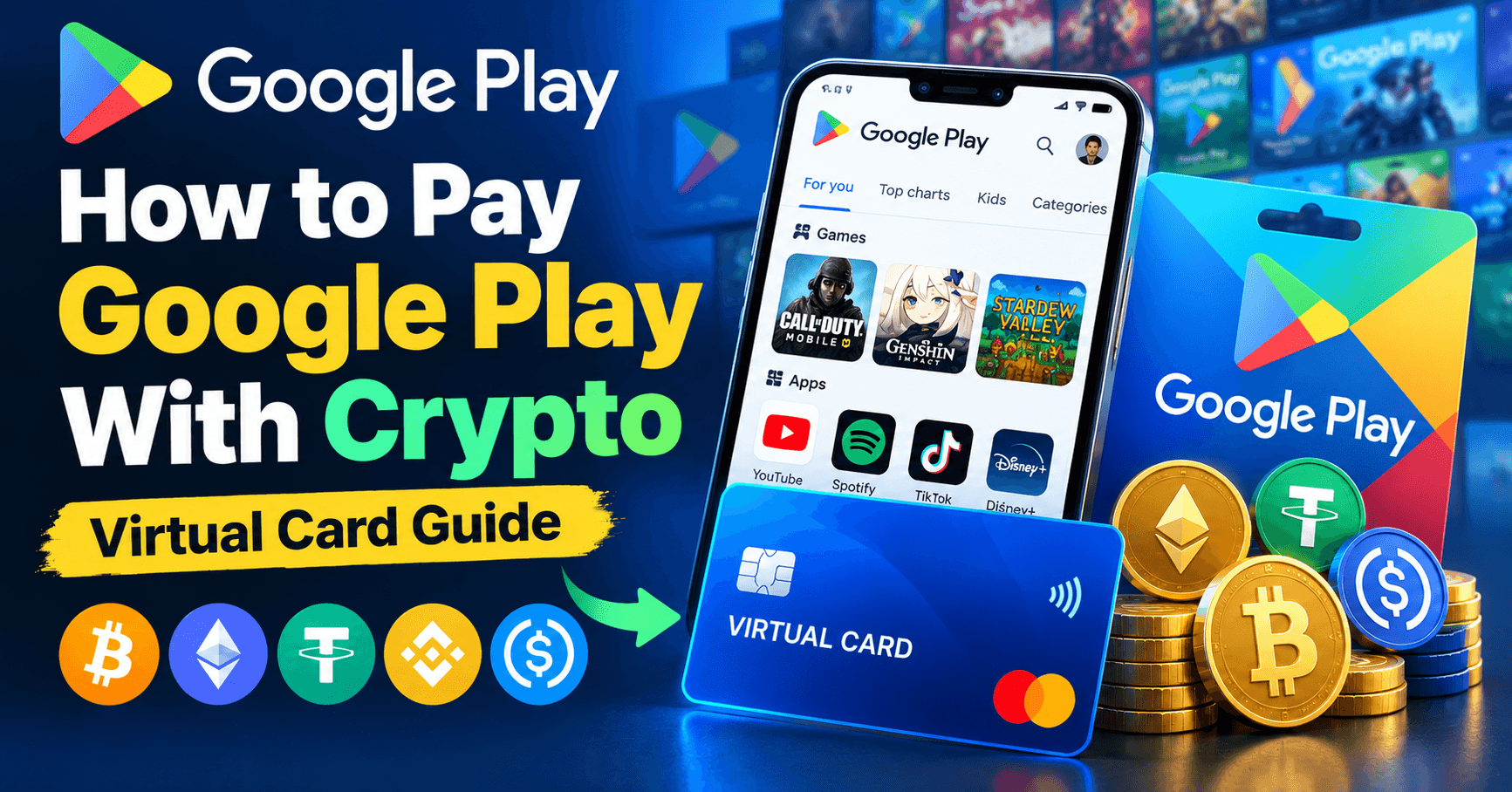
Short answer: Google Play does not accept crypto. You fund a virtual card with USDT or BTC and either add it as a payment method in Google Play or use it to buy a Google Play gift card. One card then covers games, apps, in-app purchases and subscriptions across your whole Android device.
On this page
- Why this is the highest-leverage card to set up
- Card on file vs gift card
- Region is everything with Google Play
- What loading the card costs
- Why Google Play declines your card
- Step by step: adding a crypto card to Google Play
- Subscriptions and the OR-1 loop
- Frequently asked questions
Why this is the highest-leverage card to set up
Most payment guides cover one merchant. Google Play is not one merchant — it is the billing layer for everything on your Android device. A working Google Play payment method covers:
- In-app currency: Free Fire diamonds, Mobile Legends diamonds, Genshin crystals, Roblox mobile purchases
- App subscriptions: YouTube Premium, Spotify, Duolingo, Canva, and thousands more
- Paid apps and games
- Google One storage
Set this up once and you stop hitting payment walls across every app you use. That is why it is worth doing before any single-game top-up card.
Card on file vs gift card
| Card on file | Gift card code | |
|---|---|---|
| How it works | Card added to Google Play, charged per purchase | Code redeemed into a Play balance |
| Works for subscriptions | Yes | Yes, while the balance lasts |
| Region risk | Low — must match account country | High — code carries a country |
| Verification probe | Yes, a small hold when added | None |
| Recommended | Yes, by default | For gifting, or where cards are unsupported |
Card on file is the better default. It works for recurring subscriptions without a balance running dry, and it avoids the region problem entirely as long as your Google account country matches.
Region is everything with Google Play
Google Play locks purchases to your account's country, and it is stricter than most stores about it.
Gift card codes are country-locked
A US Google Play code will not redeem on an account set to India, and vice versa. There is no workaround. Buy the code for your account's country, or use a card on file instead.
Your payment method must match your Play country
Google requires the billing country of your payment method to match your Google Play country. If your Play account is set to Bangladesh and you add a USD card with a US billing address, Google may reject it or prompt you to change your Play country.
Changing your Play country is a one-way door
Google allows a country change roughly once per year, and when you change it you lose your existing Play balance — it does not transfer. Check your country in the Play Store under Settings, then General, then Account and device preferences, before you buy anything.
Load for a quarter, not for a month
Card top-ups carry a percentage plus a flat amount. Loading monthly pays that flat charge twelve times a year; loading quarterly pays it four times, for the same spending.
Google Play subscriptions are the exact case where this matters, because a card that runs dry on renewal day does not just cost you a decline — it can put the payment method into a failed state that blocks other purchases too. Loading a quarter ahead removes the failure mode entirely. Wallet deposits are free and there is no daily or monthly spending cap.
Current rates are on the card fees page, which is always up to date.
Why Google Play declines your card
1. The verification probe
When you add a card, Google places a small authorisation to confirm the card is live, sometimes for a zero amount. Some virtual cards fail zero-amount authorisations outright. Ours handles them, but the card still needs a live balance when you add it. Do not add an empty card.
2. Billing country does not match your Play country
This is the Google Play-specific one. Even a perfectly valid card is rejected if its billing country differs from your Google Play account country. Check both before assuming the card is the problem.
3. Address verification mismatch
Copy the billing address from your card details page exactly. Postal code mismatches alone are enough to fail the check.
4. Merchant category is closed
Google Play bills under digital goods and software categories, MCC 5817 and 5734. Cards restricted to retail categories reject the charge before the balance matters.
5. Old failed charges are blocking new ones
If a previous subscription charge failed, Google retries it and can block new purchases until it clears. Check Play Store, then Payments and subscriptions, then Budget and history for a pending failed charge, and clear it first.
Step by step: adding a crypto card to Google Play
- Check your Play country. Play Store, Settings, General, Account and device preferences. Note it.
- Fund your wallet. Deposit USDT, BTC, ETH or TRX. Deposits are free and confirm in minutes.
- Issue a card. Create a USD virtual Visa with 3D Secure enabled.
- Load it before adding it. Put a working balance on the card so the verification probe clears — never add an empty card.
- Add the card. In the Play Store, go to Payments and subscriptions, then Payment methods, then Add credit or debit card.
- Enter the billing address exactly as it appears on your card details page.
- Clear 3D Secure if prompted. Fetch the one-time code from your dashboard and submit it.
Once the card is attached it works for apps, in-app purchases and subscriptions with no further setup.
Subscriptions and the OR-1 loop
Google Play subscription failures are self-reinforcing: a renewal fails, Google marks the payment method as problematic, and subsequent purchases fail with a generic error even after you top up. Avoiding it is straightforward.
- Keep a buffer, not the exact amount. Renewal dates drift by a day and currency conversion moves the total.
- Top up two days before renewal, not on the day. Crypto confirmations are quick but not instant.
- Never freeze the card between renewals. A frozen card returns a decline exactly like an empty one, and Google counts it as a failure.
- Clear failed charges before adding funds elsewhere. A pending failure blocks new purchases regardless of balance.
- Run every subscription on one card. Maintenance is charged per card per month, so three cards cost three times as much for no benefit.
Frequently asked questions
Can I buy a Google Play gift card with crypto?
Not directly from Google — Google does not accept Bitcoin or USDT. You fund a virtual card with crypto, then either add that card to Google Play directly or use it to buy a gift card from a retailer that sells them.
Does Google Play accept virtual cards?
Yes. Google Play accepts virtual Visa and Mastercard numbers. The card needs a live balance for the verification probe, a billing country matching your Play account country, an exactly matching billing address, and open digital goods categories.
Why does Google Play say my card was declined?
Common causes are a billing country that does not match your Play country, an address mismatch, a card with no balance when the verification probe runs, a closed merchant category, or an older failed charge still pending on the account.
Can I redeem a US Google Play code on an Indian account?
No. Google Play gift card codes are locked to the country they were issued for. Buy the code for your account's country, or use a card on file instead.
What happens if I change my Google Play country?
You lose any existing Play balance, and Google generally allows the change only about once per year. Check your country before buying anything rather than after.
Can I pay for YouTube Premium and Spotify with this card?
Yes, when they are billed through Google Play. Once the card is attached it covers every Play-billed subscription, which is the main reason to set this card up before any single-app one.
Do Google Play balances expire?
Play balance from gift cards does not normally expire, but it is locked to the account country and cannot be transferred or cashed out. Card on file avoids that lock-in entirely.
Get set up
Same card, other stores: read the guides for Free Fire diamonds, Robux, PUBG Mobile UC and Steam wallet funds.
Open an account, deposit USDT, and attach a card to Google Play before your next renewal date.